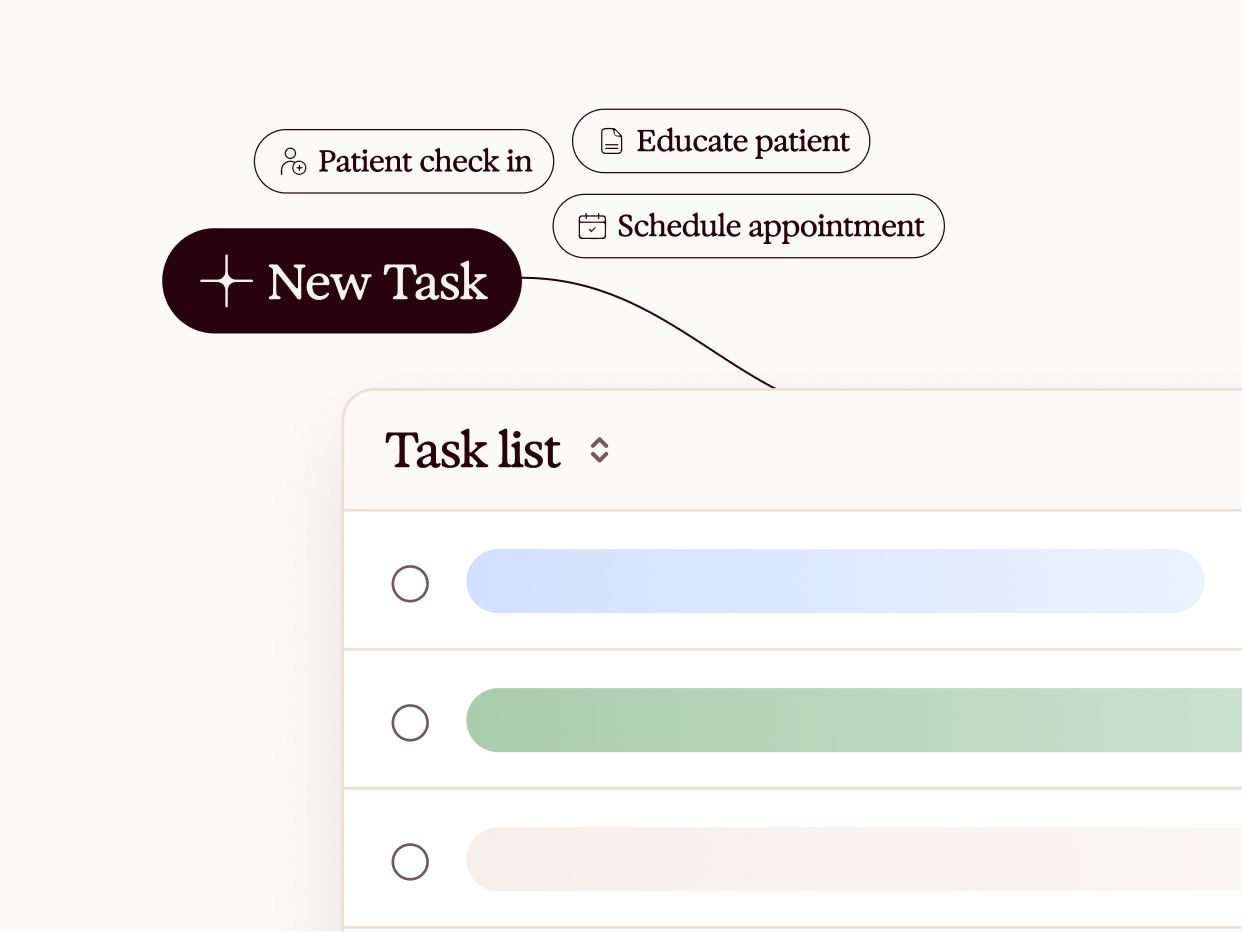
Tasks enables Heidi to automatically identify and organize action items from your clinical notes. Think, no more sticky notes, no more mental checklists, no more wondering, “Why is ‘Order CT scan for Mrs. Smith’ written in my calendar?”
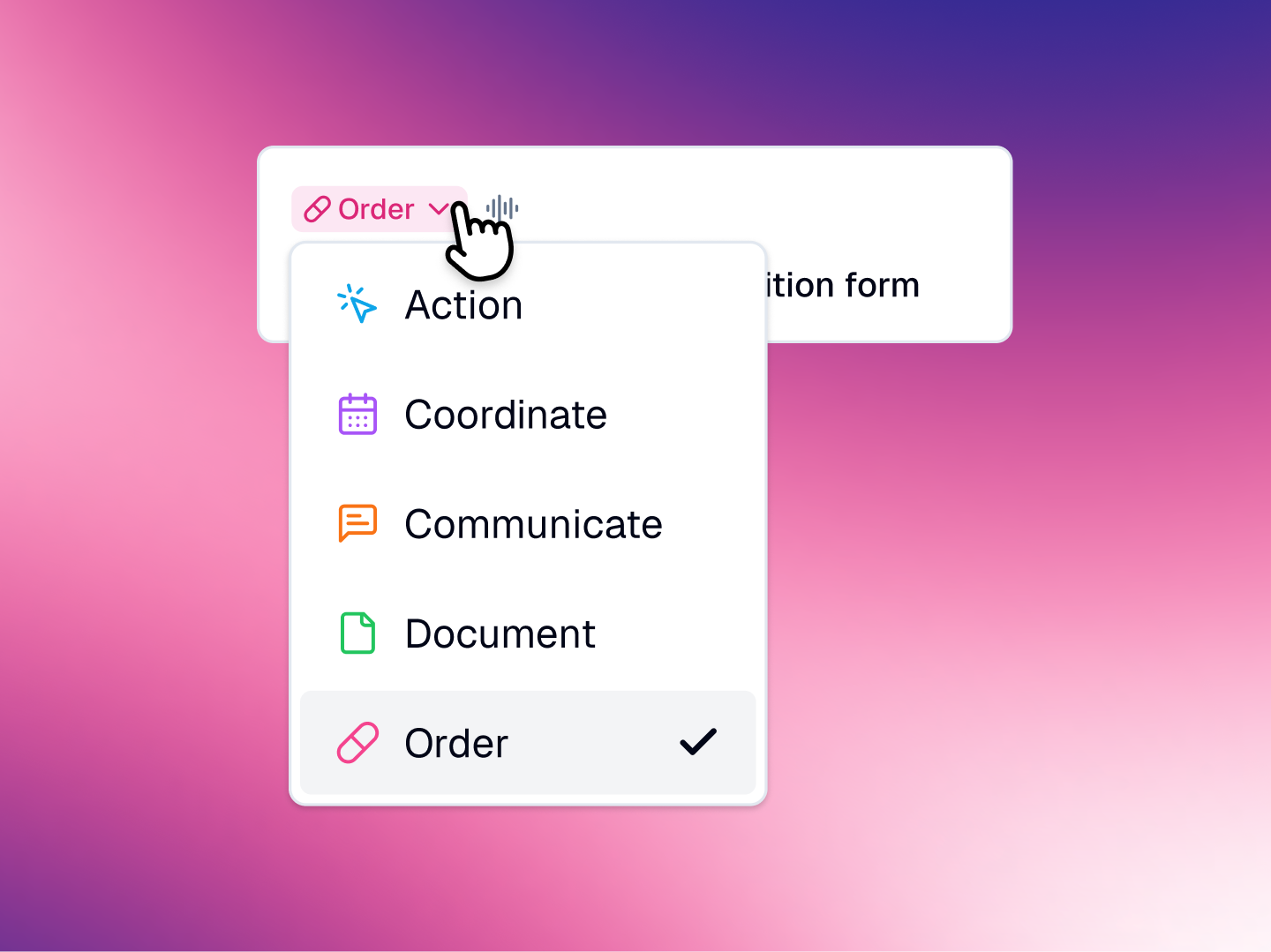
With Tasks, everything you need to follow up on is neatly color-coded in an interactive list next to your note.
Section Name: BlockImage
In the tasks panel, you can:
Edit the description or Task type.
Add new Tasks with the + icon at the bottom of the list.
Cross items off the list after completion.
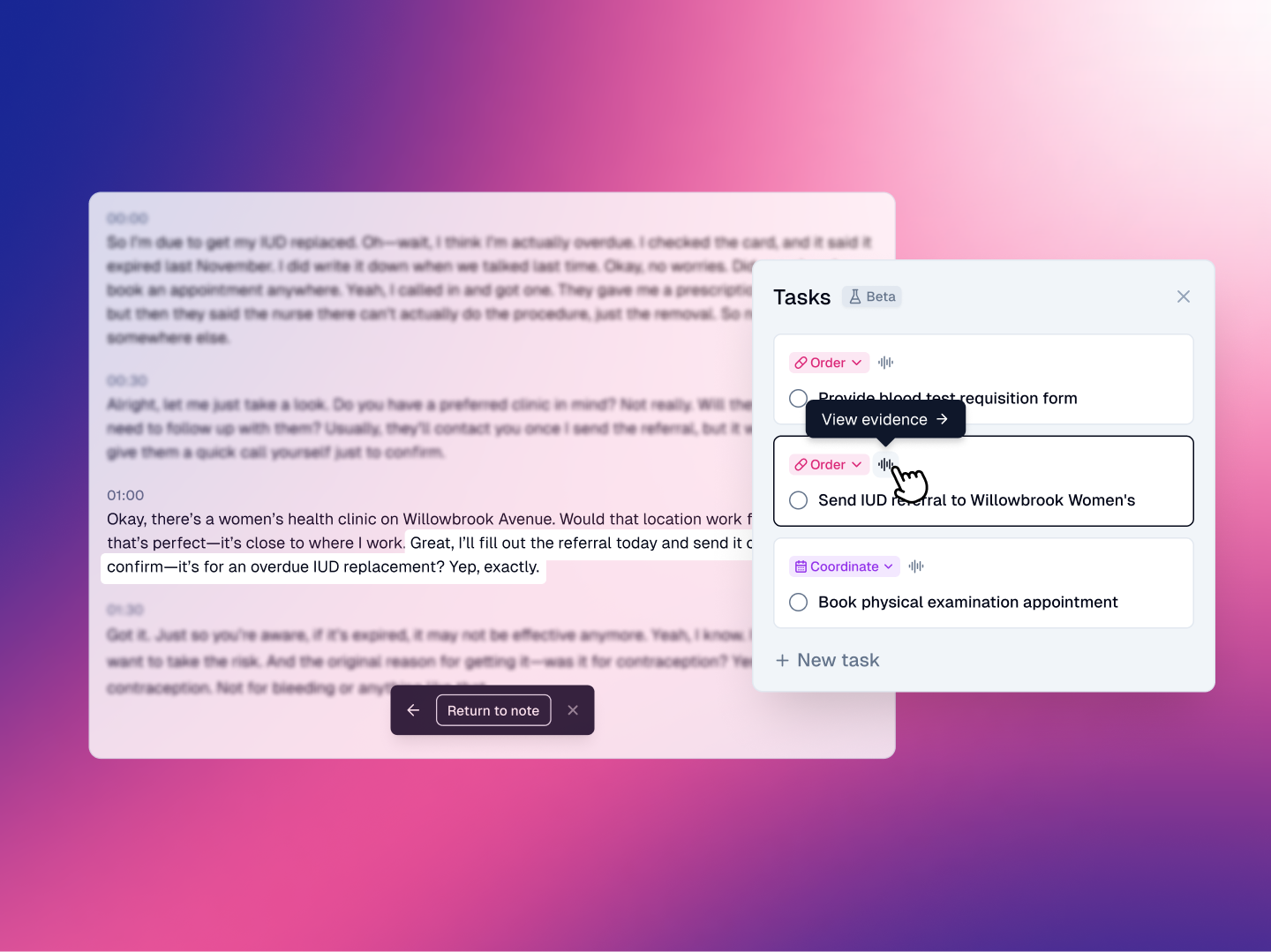
Clarify the clinical rationale through highlighted evidence in the transcript.
Section Name: BlockImage
Tap on any suggested task to instantly view the exact point in the note or transcript where it was captured—so you can quickly confirm key details without scanning the full note.
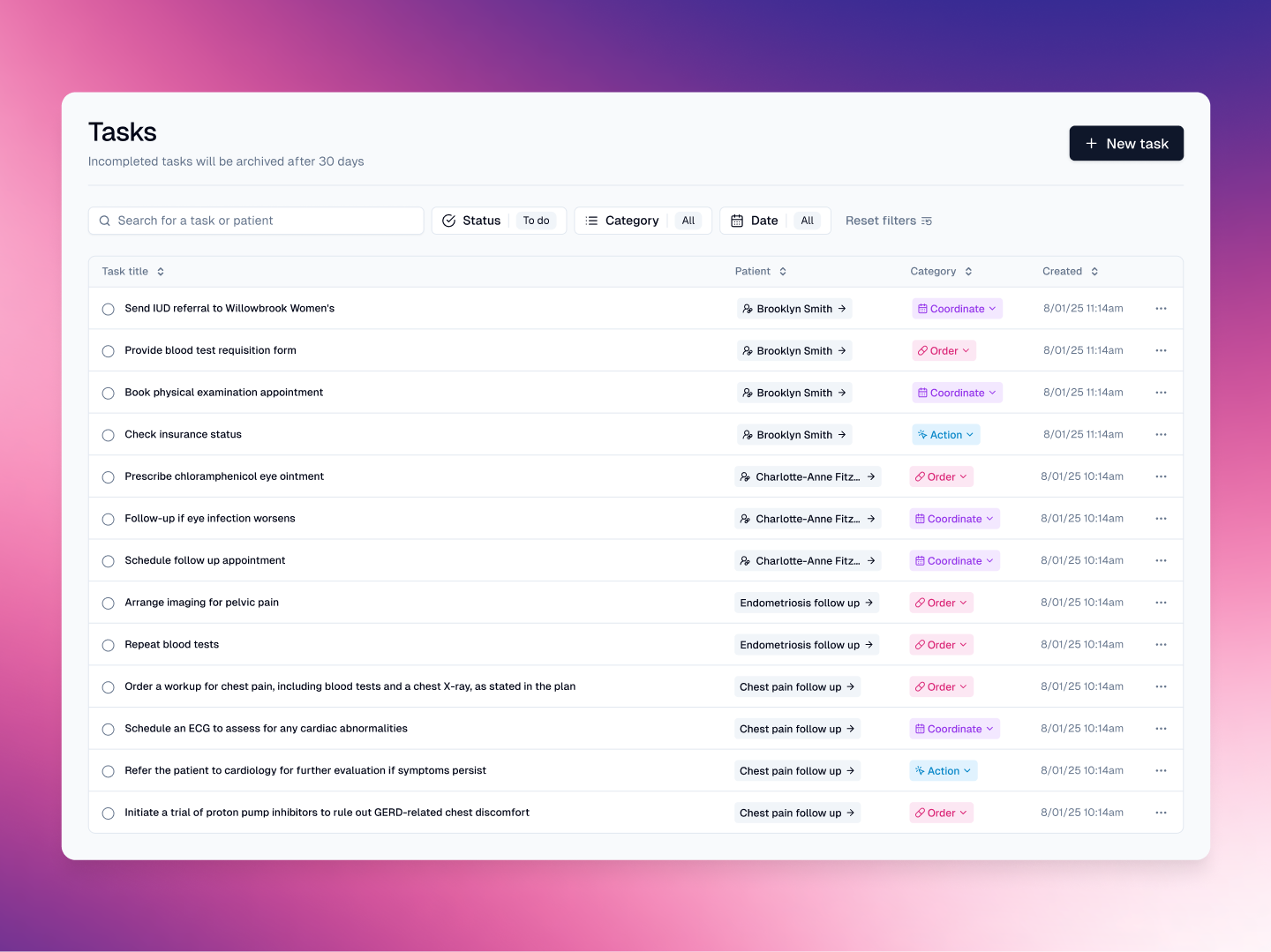
In the Tasks menu, you’ll find your full Master Task List—showing all outstanding action items across patients and sessions. The list is fully searchable, making it easy to track and manage follow-ups in one place.
To keep things clear and focused, tasks marked ‘To do’ that remain inactive for 30 days are automatically archived. You can restore any archived task at any time, so nothing is ever lost permanently.
Section Name: BlockImage
Heidi’s Tasks help to:
Minimize the cognitive load of identifying, organizing, and tracking action items from clinical encounters.
Reduce the risk of inadvertently overlooking (or deprioritizing) an urgent clinical task.
Support the seamless handover of action items to clinical assistants and colleagues.
Justify billing by attaching evidence to treatment and management decisions.
Tasks is currently in a phased beta rollout. Get early access via Heidi Labs in Preferences.
Add previous sessions to Context
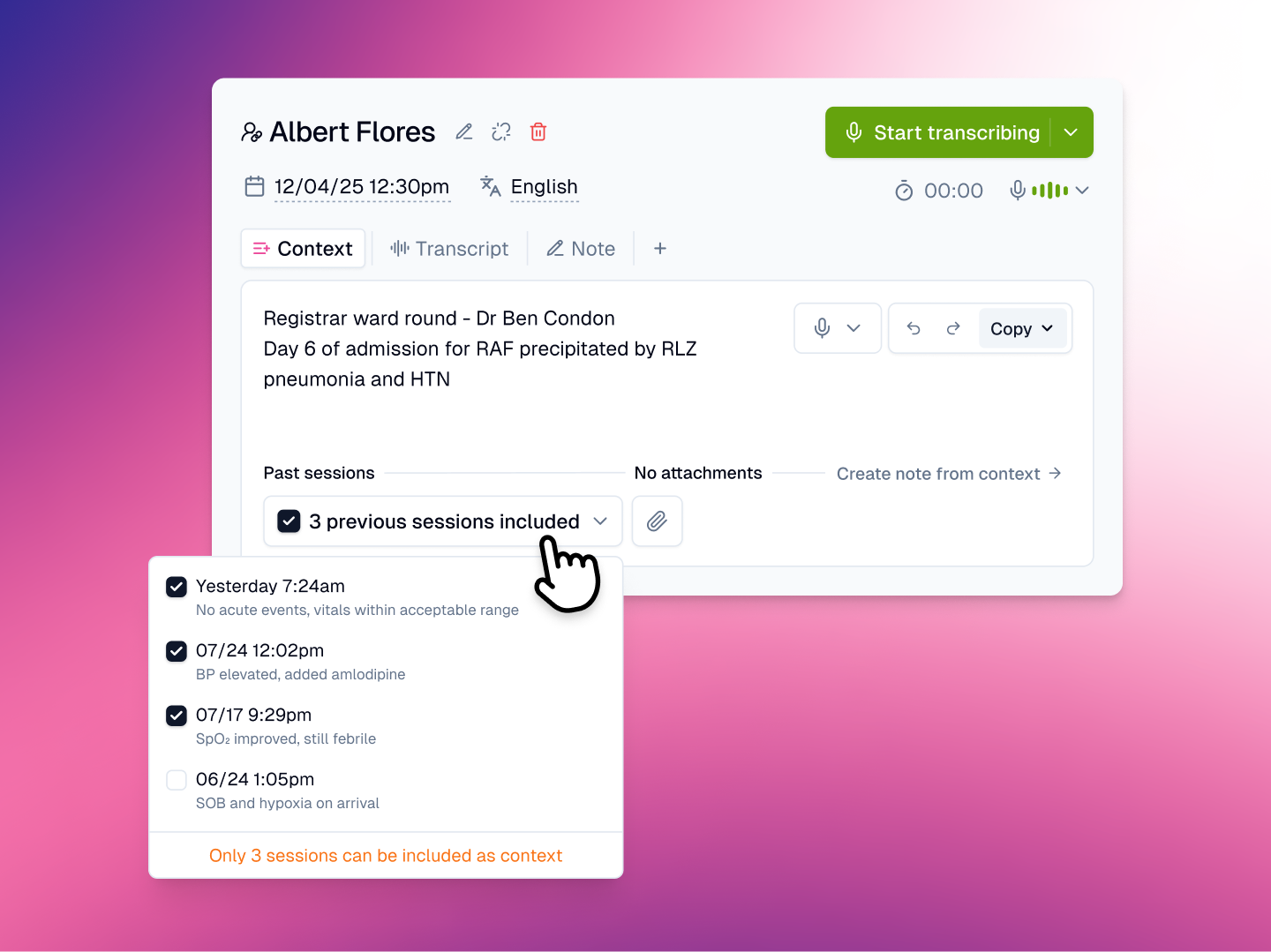
Conducting follow-up appointments with Heidi just got easier. You can now add past sessions to Context with the click of a button.
To use linked patient sessions as Context, navigate to the Context tab and open the Past sessions menu (in the bottom left).
Section Name: BlockImage
Select up to three linked sessions for immediate use as Context for in current notes and documents (no more copy & pasting entire sessions into Context!).
*instructions for creating patient profiles and session linking is available here.
Benefits of using linked session as Context include:
Choose any sequence of sessions - Include sessions based on recency, significance (e.g., a detail-rich initial assessment), or a combination of both.
Avoids verbally recapping history - No need to verbally “prime” Heidi with a summary of recent events in the session, making follow-up appointments more efficient.
Clarify information with Ask Heidi - Heidi can instantly confirm details from linked contextual sessions, like a medication list, discharge date, or treatment plan.
Inclusion of history in templates - The template prompt (previous notes)instructs Heidi to automatically reference previous sessions in outputs.
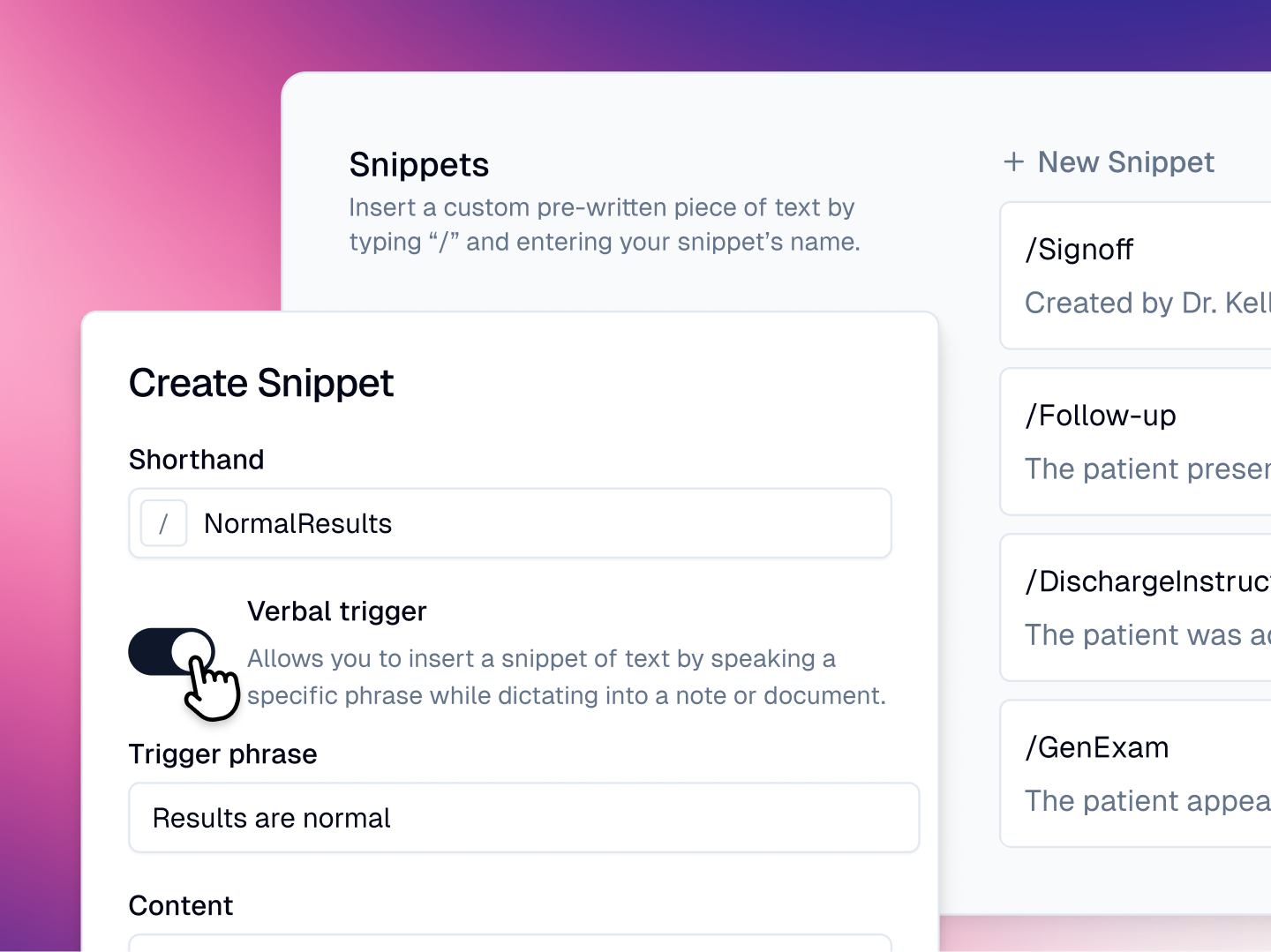
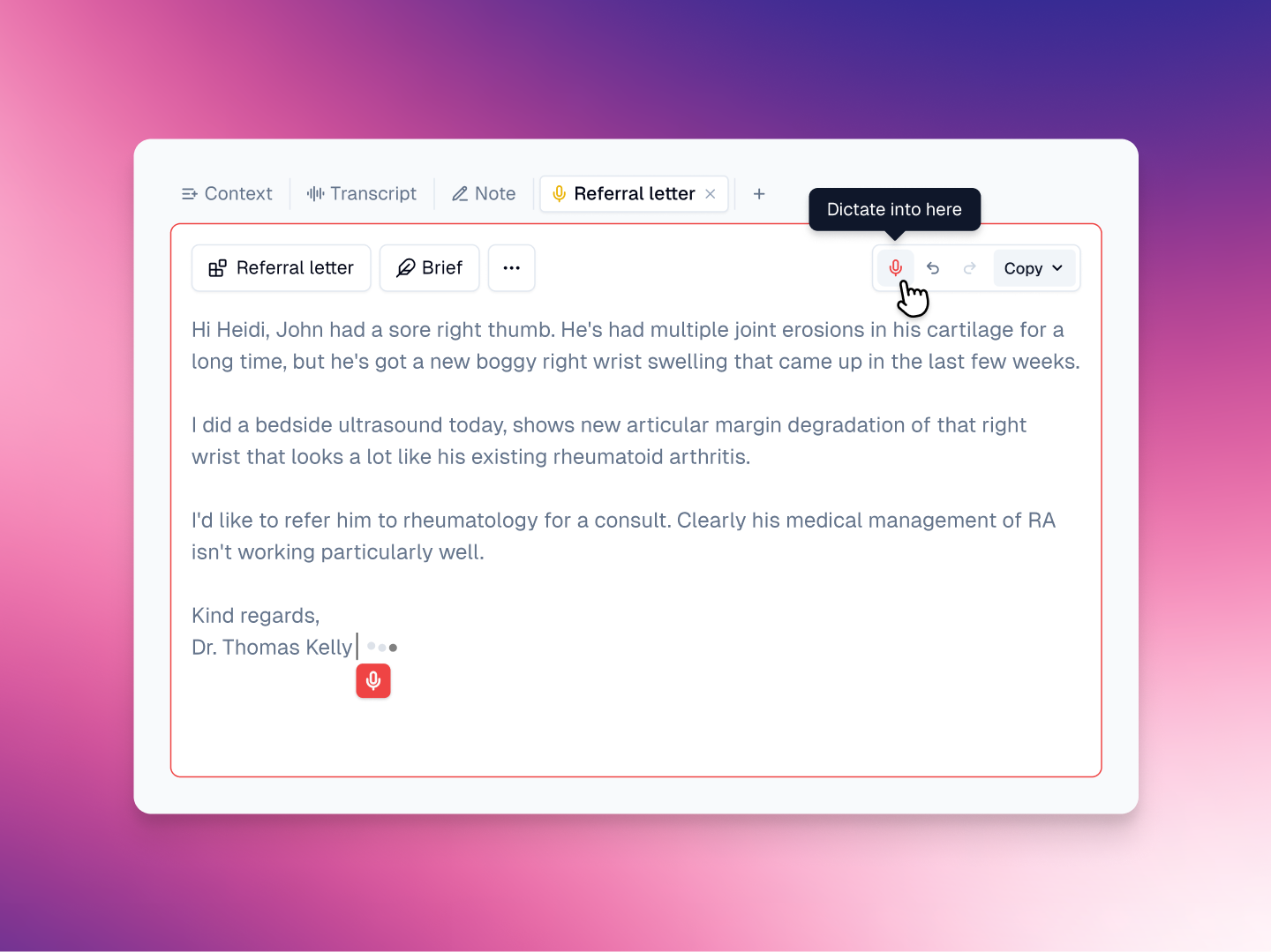
As Heidi evolves into a more hands-free experience, clinicians now have the option of utilizing voice-activatedSnippets (Heidi’s version of word macros).
To activate this feature, create a verbal trigger for your Snippet in the Memory menu.
Section Name: BlockImage
Then, with a completed document or note open (or in Context):
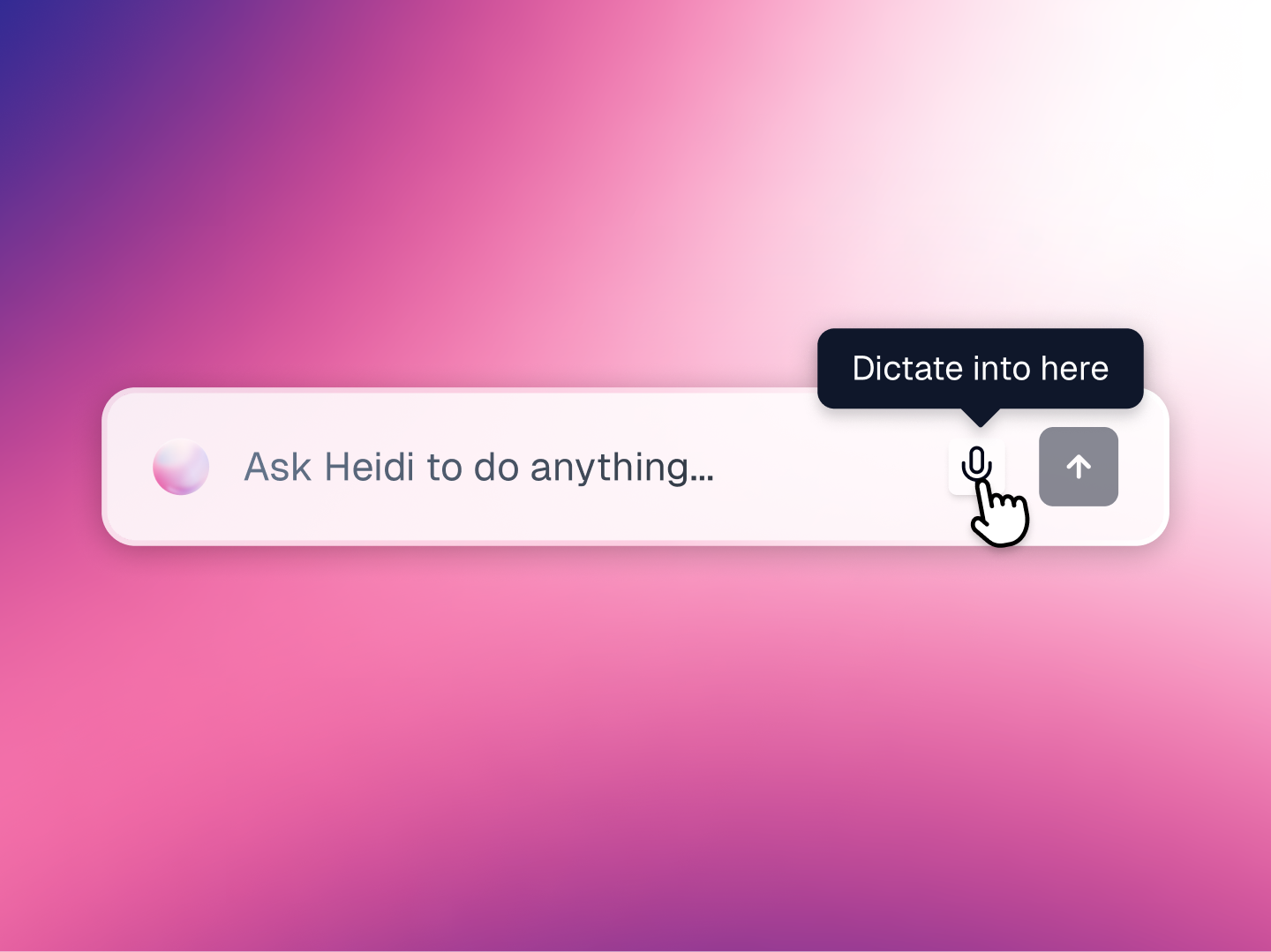
Ask Heidi is that unassuming little box at the bottom of the session window that allows you to get Heidi’s help with anything.
Your imagination really is the limit with Ask Heidi. You can ask her to create a summary of your session, change the formatting of a note, or even retrieve information from files uploaded to Context.
Section Name: BlockImage
Queries previously had to be typed into Ask Heidi. But with dictation becoming available everywhere, you can also ask questions by voice (via the microphone icon to the right of the box). Great for longer questions or performing multi-step iterative tasks.
AI document suggestions
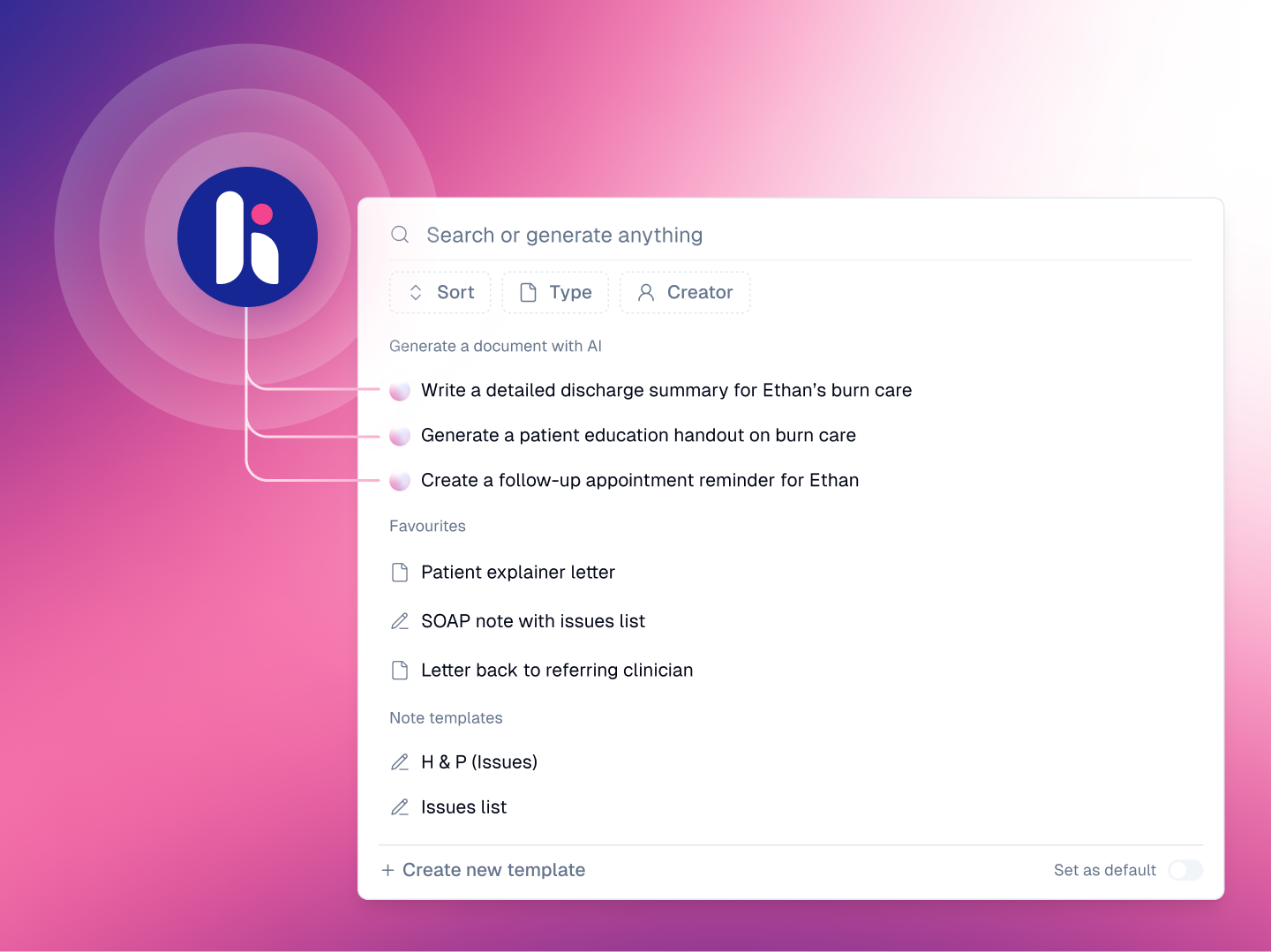
Next time you hit Create to generate an output, check out the suggestions under the Generate a document with AI heading.
Section Name: BlockImage
You’ll find three suggested actions based on Heidi's analysis of the encounter. If any aligns with your intended actions (or perhaps something you hadn’t thought of yet), select it and the output automatically generates.
All part of our mission to reduce the cognitive load involved in documentation, giving you more bandwidth for the important things.
Papercuts
Improvements
Redesigned the “Provide feedback” modal (smiley face rating scale) to allow expanded feedback for individual transcripts, notes, and documents. Also enabled customer feedback for coding
Improved UI of the Context window (the past sessions and attachments menu is now pinned to the bottom of the viewport)
Enhanced responsiveness of the Start transcribing button
Improved the layout and readability of team invites
Implemented progressive loading for large session lists to improve overall performance
Fixes
Fixed a bug causing the incorrect limiting of Pro actions for a small number of users on teams
Resolved an issue causing some evidence for coding not to be highlighted in the transcript
Corrected minor formatting issues occurring with Snippets and auto-replace
Fixed a bug causing Ask Heidi to become unresponsive after using certain keyboard shortcuts
Resolved an issue causing problems with exporting PDFs
Fixed a bug impacting an isolated group of Zedmed integration users where the patient consent popup was not showing
Corrected a problem causing intermittent screen flickering when selecting a template
Fixed several minor issues causing problems with magic paste in the Chrome extension
Stopped a double scrollbar appearing when working with large blocks of text in Context
Fixed a bug temporarily preventing a small number of users from scrolling to the end of a note
Realigned the cursor and text in the patient details box of the mobile app